



Changing the currency on your Shopify store may sound like an easy solution, it’s not always as simple as a switch. There is more to it than choosing a new currency; your payment gateways, product prices, and your customers’ checkout experience can all be affected if changes are incorrect.
Some payment providers accept only specific currencies, and changing the currency may also impact how your prices are displayed or affect your taxes or shipping settings. It’s essential to understand what you need to do and what you need to verify prior to changing these options.
In this guide, I will take you step by step through everything we need to cover. You will learn not only how to change currency on shopify and prevent typical mistakes, but also how to maintain accurate pricing and keep your store running smoothly – without any bumps along the way.
Why Change Currency on Shopify?
Consider how changing your store’s currency will impact your future plans before proceeding. The currency you pick shapes your customers’ shopping habits and your operations. Know this impact before you switch.
Your Biggest Buyers Are Somewhere Else
You may initially target local customers, but sometimes most sales come from overseas. For example, we have worked with Canadian brands that saw 70% of their sales come from U.S. shoppers. In those cases, switching to U.S. dollars was a strategic move to align pricing with their primary audience.
Going Global and Wanting More Sales
Expanding internationally? Local currency can increase conversion rates, as shoppers prefer to pay in their own currency.
One Currency, Less Headache
Using one currency, even globally, makes accounting easier and saves time each month.
While currency changes can benefit your business, planning each step is vital. The next sections outline the best practices to help you avoid mistakes and proceed confidently.
Before expanding internationally, ensure your store is easily accessible online. Our guide on SEO for Small Businesses offers practical advice to boost visibility and attract the right audience.
Requirements: Shopify Payments vs. Third-Party Gateways
Your payment gateway handles customer payments. Check your gateway’s currency limits before making changes.
Third-Party Gateways Are Limited
PayPal Pro and Stripe are reliable, but only support one currency. This limits local options and complicates overseas sales.
Shopify Payments Is the Key
Shopify Payments supports multi-currency. Customers see converted prices worldwide, helping you grow internationally.
Why the Switch Pays Off
Shopify Payments may slightly change your transaction fees. Allowing customers to pay in their own currency often increases conversions and offsets fees.
When Shopify Payments Isn’t Available
If Shopify Payments isn’t available, use trusted third-party currency apps to display local prices and offer some conversion options. These apps aren’t as seamless, but still help sell internationally.
Key Factors to Review Before Changing Your Store Currency
Changing your currency changes all prices, orders, and payments. Move step by step and back up your data to prevent costly mistakes.
Legal and Tax Considerations Before Making Changes
Changing currency may trigger new legal or tax issues. Verify your obligations before proceeding to avoid unexpected penalties.
A client changed currency without consulting an accountant and received unexpected penalties. Always consult a tax professional when making changes across borders.
In the United States, the IRS has clear rules around foreign currency transactions for businesses. Merchants located outside the U.S. should also consult their local tax authority on similar rules. Spending a few hundred dollars on proper advice may save you thousands in fines and a great deal of stress later on.
Pre-Change Checklist and Preparation
Take your time. Use our checklist and complete each step before making any changes to your settings.
Backing Up Product and Discount Data
First, export product and discount data. In the Products section, choose Export and download your entire product catalog as a CSV file. Repeat this process for all discount codes to ensure you have copies of the current details.
Back up your data before changing currencies, as Shopify won’t store old prices. You’ll lose historical pricing without a backup.
Verifying Payment Provider Compatibility
For each payment provider, confirm support for the new currency before making any changes. If a provider doesn’t support it, switch or disable that provider to prevent checkout failures after the change. List your active payment methods and confirm new currency support for each. Disable or replace those that don’t support it before you switch.
Checking App Compatibility
Some Shopify apps only work with certain currencies. Changing currency may affect app functionality.
Track apps with potential currency issues, particularly those related to accounting, inventory, and pricing. Contact app developers to confirm support.
Need a custom currency selector or theme tweaks? Contact us today for expert Shopify Web Development Services and get started with setup and customization.
Step-by-Step Currency Change Process
Changing store currency affects all prices, orders, and reports. Move slowly and follow each step to avoid losing data or confusing customers.
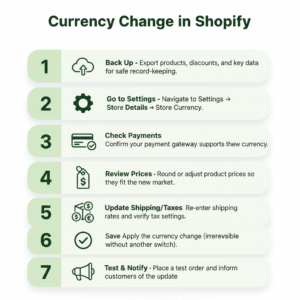
Log In and Back Up Your Store
Log in to the Shopify admin. Export Products, Discounts, and other key data as CSV files to keep a record before changes.
Navigate to the Currency Settings
In Shopify admin, go to Settings > Store Details > Store Currency. Select your new currency and double-check the correct store if you manage several.
Review Payment Gateways
Confirm your payment gateway supports the new currency. Enable multi-currency in Shopify Payments. For third-party gateways, confirm or change before switching.
Adjust Product Pricing (If Needed)
After changing currencies, check all key product prices. Manually round prices, such as updating $19.87 to $19.99, to improve appearance and consistency.
Update Shipping Rates and Taxes
Update shipping and delivery rates, as well as taxes, so that all rates match the new currency.
Save and Confirm your Change
After reviewing and backing up, click Save to confirm. This change is permanent until you update again. Double-check before saving.
Test Your Store
Make a test purchase to verify that the correct currency is displayed in your store and that all apps still function properly after the change.
Communicate with Customers
Inform customers of the currency change with a banner or email to build trust and prevent confusion.
Want expert support? Reach out to a Codeplux Shopify specialist to manage backups, review payment gateways, and conduct testing for a seamless, accurate transition.
Post-Change Tasks and Updates
Once you click Save, your store switches currencies. The numbers remain unchanged, only the symbols update.
For example, $50 USD becomes £50 GBP after the switch. Numeric values stay; only symbols change, which may confuse customers. Address this next.
Update Product Pricing
Shopify won’t change prices automatically; a $50 USD product could be overpriced as €50 EUR.
- Investigate your new market:
- What do competitors charge?
- Do local customers prefer prices ending in “.99” or whole numbers?
- Price key items in a way that feels natural in your new currency.
Adjust Shipping:
Delete all old shipping rates and set new ones in your new currency. Double-check carrier rates for accuracy and competitiveness to ensure optimal pricing.
Manage Gift Cards and Refunds
Gift cards in the old currency become unusable after conversion. Contact the holders to provide a new card or a refund based on the exchange rates.
Handle refunds for past orders manually. Use the original purchase’s exchange rate, as Shopify does not automatically convert it for you.
How to Set Up Multi-Currency with Shopify Markets
Want to sell globally without changing your store’s base currency? Shopify Markets lets you show local prices, while your admin stays the same. Follow these steps.
Step 1: Open Shopify Markets
- In your Shopify admin, select Settings (in the bottom left corner) and then Markets.
- Shopify usually creates default segments: your main market and an International market.
- It’s like your worldview of selling in other countries.
Step 2: Turn On Local Currencies
- Select the market segment you would like to expand to (the International market is a good option to use as a starting point).
- Scroll to Currencies and toggle Use local currencies to On.
- That single switch will enable real-time currency conversion for each country in that market, allowing customers to see the price in their own currency without needing to take any additional action.
Step 3: Customize Currency Display & Pricing
Here is where you can optimize for conversions:
- Price Rounding – Round pricing for conversion to nice numbers (e.g., €12 or €12.50) rather than awkward decimals (e.g., €12.47).
- Market Adjustment – Apply a small markup if your costs increase in the market, or offer a small discount for new sales.
These little changes will make prices feel more familiar and trustworthy to international shoppers.
Why It’s Great:
Your base store currency, apps, and gift cards are unaffected. Customers shop in their own currency, and you maintain full control behind the scenes: a true win-win situation for global expansion without the hassles of a new currency.
What Really Happens When You Change Your Store Currency
Are you considering converting your Shopify store to a new currency? It sounds straightforward, and sometimes it is, but ultimately it can be a journey. We’ve personally witnessed a variety of merchants tackle this challenge, and the impacts can surprise you.
Product Pricing & Profit Margins
The first thing that should catch your attention is how your profit margins fluctuate, sometimes quite drastically. Exchange rates can impact your profits in a way you may never expect. I remember a situation where we assisted a store in moving from USD to CAD, and their margin on their best-selling products dropped from 40% to 28% overnight. Not only do exchange rates have a diminishing effect on margins, but different pricing psychology is also at play from one country to the next.
A product priced at $99 USD may seem expensive at €99 EUR when similar products are available in Europe for €79 EUR. This is where competitive research is essential; check your marketplace or use Google Shopping or other tools to determine what people in your new market consider a reasonable price before establishing your own pricing.
Payments & Exchange Rates
Handling payments and exchange rates is also a challenge. If you are using Shopify Payments and have multi-currency enabled, your customers will pay you in their own currency, while your payouts will be in your primary currency. Shopify handles the payment for you and charges a small fee for its service.
Typically, their rates are competitive with those of banks, but not as favorable as those of foreign-exchange providers. This difference can add up quickly for larger-volume stores. Timing is also important, as exchange rates are constantly fluctuating, and the amount you ultimately receive may differ from the value you expected when you placed the order. Monitoring the conversions during periods of significant volatility is a good idea.
Reports & Analytics
Reporting and analytics can indeed be confusing as well. Following the change, you’ll likely see reporting for your historical data that includes both old and new currencies, which complicates year-over-year comparisons. The simplest way to maintain clarity is by establishing an inception date that clearly marks “before and after,” then treating it as a transition point.
Don’t invest time normalizing your old reporting; just transition away from it after the changeover. Don’t forget about your advertising platforms, such as Google Ads and Facebook, which will all need updated conversion values, ROAS targets, and budgets to reflect the new currency.
Adjusting the currency for your store can definitely allow you to access new markets, but it also changes everything about your pricing, profit, reports, and maybe even your advertising. Be sure to conduct thorough research, carefully plan your transition, and monitor exchange rates to ensure both your business remains profitable and your data remains clean.
Give Customers Control with a Currency Selector
A currency selector may seem like an insignificant detail; however, it can build trust and potentially improve conversions as well. Even if your store automatically detects the shopper’s location, you should still give them the option to select their own currency; this implies transparency and flexibility.
Even with automatic currency detection, you still want to give the customer control over their experience. We have observed that having a visible currency selector increases trust and transparency, which helps improve conversions.
Turn On Built-In Theme Selectors
The majority of modern Shopify themes include a built-in currency selector; you just need to enable it. Check both the header and footer in the theme editor settings; they are typically hidden there. For visibility, I prefer the header, but the footer is an option, especially if your header is full. The important aspect is to ensure the shopper can see it easily.
Level Up with Geolocation Apps
Looking for a more advanced solution? Geolocation apps like Orbe or Shopify’s own GeoLocation can determine the location of incoming visitors and gently default to location-specific currency and market. I’ve seen stores increase conversions somewhere in the 15% – 25% range with this and a simple first-visit pop-up: “We noticed you’re visiting the website from Germany, would you like to switch to EUR?” Give the customer their choice and remember it for the next visit.
Prepare Before You Expand
After many years in the business, the one thing we have learned is that preparation is everything. The stores that succeed are those that have planned ahead, tested their strategies, and kept their customers informed. If possible, try conducting your multi-currency experiment for Shopify Markets first before making the larger commitment of implementing a currency change on your site. Maintain a strong hold on your analytics, and make a price change only after you determine how shoppers are responding.
Take Your Time for a Smooth Transition
Don’t rush the process. I’ve seen merchants jump in too quickly and spend months cleaning up afterwards. Be thoughtful, take your time, and properly test it; this will help you have a much smoother international expansion. Shopify’s currency tools are improved and more powerful than ever, and with a good strategy, you can open up new markets and revenue without the headaches.
Conclusion
We are aware that switching or adding currencies in Shopify is not simply a settings update; it’s a strategic decision affecting pricing, profit, customer experience, and your analytics. If done effectively, it can allow you to explore new markets and seriously increase your revenue potential. But if it is done poorly, it can create challenges for months.
At Codeplux, our team specializes in providing support to merchants, regardless of where they are in the process, from planning and storing data backups to pricing, taxes, and customer communication after making a change, such as switching to multi-currency (via Shopify Markets) or preparing for a full primary-currency switch. We help you avoid costly mistakes and maintain normalcy while making changes.
If you’re ready to expand globally with confidence, let Codeplux be your partner. We’ll combine technical expertise with real-world e-commerce experience to ensure your currency strategy drives growth, not confusion.


